OptPilot Studio
OptPilot Studio is the local web UI for OptPilot. It is included in the full source checkout, not in the PyPI core package.
Studio is organized around one working loop:
- Start in a Conversation and describe what you want to accomplish.
- Let the Assistant recommend published Catalog capabilities, or open Catalog to browse Environments, Methods, and Resources directly.
- Review the setup or inputs before anything runs.
- Operate a simulator or other rich interface in the full main area, or let OptPilot run the work in the background.
- Return to a Conversation and recover running interfaces and Runs from Open work. Durable items remain in Run setups, Runs, and Workspaces.
Conversation is the default surface, but it is not the only way to use Studio. Catalog remains directly browsable, and focused interfaces do not depend on the Assistant remaining visible.
Start Studio
First install the full source checkout from Installation.
Then run:
The default URL is usually:
Studio scans packages under catalog/ by default. The largest bundled package
is catalog/production_agv_scheduling/.
First 10 Minutes In Studio
Start with this path:
- On the opening Conversation, choose a suggested intent or describe a problem in your own words.
- Review the Environment, Method, or Resource cards recommended by the Assistant. Open Catalog whenever you want to inspect the available components yourself.
- Ask to evaluate one of the ready-made Run setups, or find Tutorial · Find better factory settings in Catalog.
- Review the Run setup: Environment, Method, objective, direction, and budget. Expand its detailed configuration only when needed.
- Choose Launch run explicitly. Starting work is never implied by ordinary Assistant prose.
- Follow the running item in Open work. Open the Run to inspect its Overview and Candidates; Trials, Trial attempts, Trial results, Saved files, and Event history are under More.
- Open a Candidate. Its saved values and evaluation details load directly. Use View files without creating a Workspace, and choose Try once or Open interactive interface when eligible.
- In a full-stage interface, choose Ask from this page to open the currently selected Conversation without restarting the interface. Studio includes the current page and selected object as read-only context for that request. This does not create another Conversation or make any Workspace available. If no Conversation is selected, start or select one first. Returning to a Conversation or closing the interface view does not itself stop the underlying work.
- Choose Edit in Workspace only when you want an eligible complete project to become durable editable work. For a configured mutable source, use Link local folder.
- Use Settings to configure the assistant runtime and declared local
values. They are stored as plaintext in the project-scoped
.optpilot-ui/settings.jsonand are not copied into Run evidence; a synchronized project directory may synchronize that file. Studio Settings is not a secret vault.
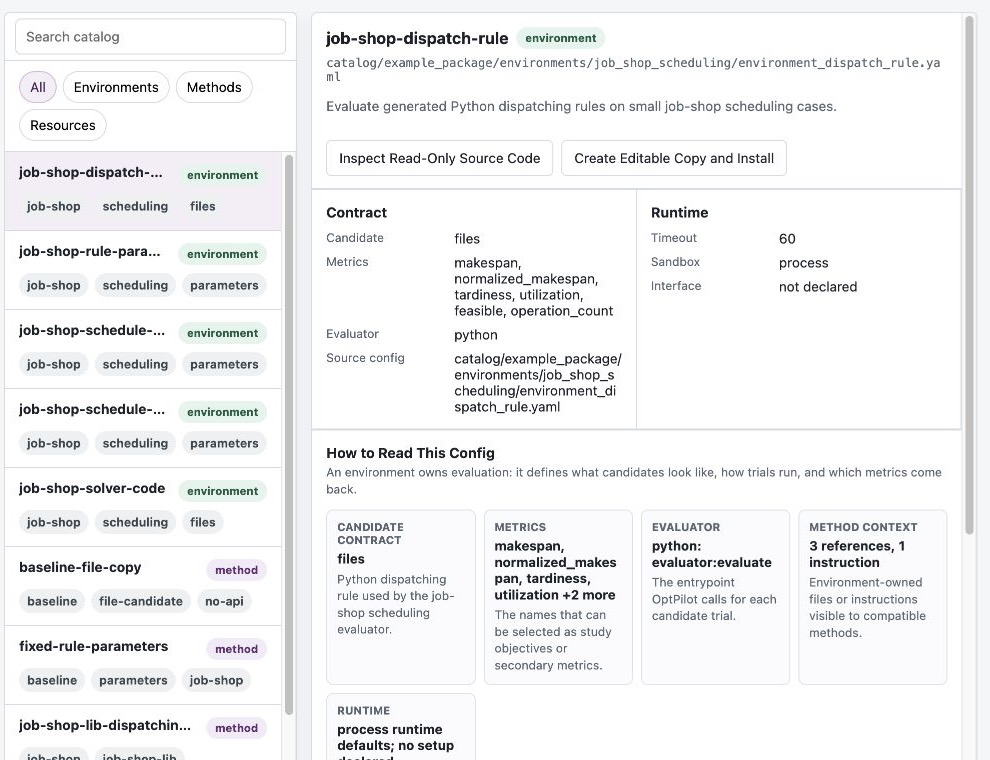
Captured from the Studio source checkout with the bundled catalog/ packages loaded.
Navigation And Working Surfaces
The left rail separates conversations from the three durable OptPilot destinations. You never need to remember which conversation created a Study, Run, or Workspace in order to find it again.
| Item | What it is for |
|---|---|
| New conversation | Start a separate problem or line of work. |
| Catalog | Browse reusable Environments, Methods, and Resources directly. |
| Run setups (Studies) | Configure or reopen a Run setup, then launch a Run. |
| Runs | Monitor active Runs and inspect retained results. |
| Conversations | Return to earlier discussions and their associated work. |
| Settings | Configure the Assistant, approval defaults, and project-scoped local values. |
A Conversation is the durable discussion thread. OptPilot Assistant is the participant that responds and acts inside that thread; it is not a second kind of conversation. The Ask from this page action on Catalog, Study, Run, Candidate, Workspace, and interface surfaces opens the currently selected Conversation with the visible page as additional context.
Conversation cards are deliberately compact: they show a topic title, current state, and only a nonzero Workspace count. Studio derives an immediate title from the first substantive request, and the Assistant can refine it during the same turn or after a material change of goal. The rail does not show a total Conversation count or repeat “New conversation” on every card.
When a Workspace is open, the Conversation list is replaced by a compact list of editable projects. Read-only Catalog source never appears in that list. Use Manage Workspaces in the Conversation Workspace panel to open the editable Workspace surface at any time.
On the Conversation surface, the right-hand Workspaces in this conversation panel shows only the editable Workspaces that the current Conversation can use. This is not another Workspace collection: each project remains a durable Workspace with its own lifetime, and no files are copied. Add Workspace makes a project available, Open Workspace opens the ordinary editable surface, Make default chooses the file and command target used when a request does not name one, and Remove affects only the current Conversation. It never deletes the Workspace or removes it from Catalog.
Current-page context and Conversation Workspaces are deliberately different. Asking about a Catalog item, Run, Candidate, or interface gives the Conversation a bounded read-only description of that selection. A Workspace becomes editable Assistant context only after the user explicitly makes that Workspace available in Workspaces in this conversation.
Creating a Workspace or adding a local folder from this panel makes it available to the current Conversation immediately. At narrower widths the same panel moves above the Conversation and can be collapsed, so it does not squeeze the message area.
The current browser addresses for Catalog entries, Studies, Runs, Candidates,
Workspaces, and interfaces remain refresh-safe. Existing bookmarks and links
such as #/studies/..., #/runs/..., and #/workspaces/... continue to open
the corresponding focused surface. User-facing surfaces present the saved
configuration that binds an Environment, Method, objective, and budget as a
Run setup; study remains the configuration kind name in the YAML schema,
API routes, and CLI commands.
Open Work
Open work is a compact process monitor, not a new kind of saved object. It contains only work that may continue — or is waiting on you — while you leave its page:
- an interface that is starting, running, stopping, failed, or needs cleanup
- a Run that is still being prepared or needs attention
- a queued, preparing, running, or stopping Run
- a Conversation with a pending approval (the card returns you to that Conversation to approve or reject; it never creates a new one)
- a finished interface session whose reported outputs are still reviewable (the card returns you to its outputs; dismiss it once you are done)
It does not contain Conversations as such, Workspaces, read-only source viewers, saved Studies, completed Runs, or ordinary Assistant messages. Workspaces stay out deliberately: a Workspace is a durable saved object with its own named destination, not a process that finishes — listing it here would blur "work in flight" with "work you keep". Durable items live in their named destinations and stay reachable from there.
Select an item to open its normal detailed surface. Leaving that surface does not cancel a Run or stop an interface. Completed Runs remain under Runs, saved Run setups remain under Run setups, Workspaces remain under Workspaces, and Assistant activity remains with its Conversation.
Source Viewer And Workspace Editor
The same full-stage workbench is reused for two deliberately different modes:
| Mode | What you see | What it means |
|---|---|---|
| Read-only Catalog item | A Source tab, a static component name, and an Open source action. | These are the exact published files. Inspecting them does not create a Workspace and cannot modify the Catalog version. |
| Workspace · Editable | Code, optional Interface, and Publish tabs, an editable Workspace name, and an Open Workspace editor action. | This is durable editable work listed under Workspaces. |
Choose Edit in Workspace from a Catalog source only when you actually want an editable project. That explicit action creates or reopens the editable boundary; merely viewing source does not.
Assistant Cards And Run Setups
The Assistant currently presents three structured card families: published Catalog recommendations, Run setups, and Runs (including a Run launch while it is being prepared). A card carries the exact Catalog reference or object identity behind the recommendation. Catalog recommendation cards may offer a declared interface, and Run setup cards may open their Workspace; these are actions on those cards, not separate interface, Workspace, or output card families. Buttons on a card invoke known Studio actions; links or prose generated in a chat message do not become privileged actions.
A Run setup exposes the common choices directly:
- Environment and Method
- objective metric and direction
- evaluation budget
- compatibility and readiness
- advanced execution and evidence settings when needed
The Assistant may propose values, but the user can inspect and change them. Launching remains an explicit, approval-aware action. For arbitrary component settings that do not have a declared form contract, Studio shows the known inputs and lets the user inspect the underlying YAML instead of guessing field semantics.
Full-Stage Interfaces
Environments, Methods, and Resources may declare interactive interfaces. When one is opened, it occupies the main area so the user can operate it without a permanent split-screen Conversation. Use Ask from this page to reveal the currently selected Conversation as an overlay and include the interface as read-only page context. Hiding the overlay preserves both the Conversation and the live interface session.
Catalog interfaces run over read-only published source plus private, launch-scoped runtime and output storage. Workspace interfaces run from the selected editable Workspace. Candidate interfaces retain their exact Run, Candidate, and job coordinates. Studio never puts presentation credentials in the refresh-safe address.
Catalog And Workspace Actions
Catalog entries may expose these actions:
| Action | Behavior |
|---|---|
| View source | Opens the published version read-only without creating a Workspace. |
| Edit in Workspace | Creates or reopens one editable Workspace for intentional changes. |
| Open interface | Starts the declared interface over read-only source and temporary launch storage. Prepared dependencies may be reused. |
| Run Resource action | Shows the registered command, network grant, timeout, and environment/secret names, then asks for confirmation. The current host executor runs only reviewed actions that declare network: enabled; secret values stay hidden and are redacted from results. |
| Configure Run setup | Choose a compatible Environment or Method and open a Run setup while preserving the exact Catalog reference. |
A configured source card is labeled Local source · Mutable. Link local folder connects that existing folder as one editable Workspace without copying it and opens the normal Publish flow.
Selecting a Run opens its recorded evidence directly; there is no public “Open as Workspace” step. Candidate values and evaluation details load directly, and View files is a short-lived bounded file view. Edit in Workspace creates or reopens durable editable work only for an eligible complete project. Save to Shortlist keeps a decision and its note inside the source Run without creating a Workspace or runtime.
When comparing file Candidates, Studio first shows the sealed manifest changes. Use View text diff on one added, removed, or changed file to inspect its contents. This is a direct, read-only operation over the two exact retained Candidate trees. Text diffs are intentionally bounded to strict UTF-8 files no larger than 48 KiB and 4,000 lines per side. If a complete diff cannot be returned, Studio explains why; use View files for broader manual inspection.
The Shortlist tab appears after its first Candidate is saved. Edit the Shortlist name, Candidate notes, membership, and order, then choose Save changes. More contains saved history, export, and Delete Shortlist. Viewing an earlier saved version does not discard unsaved edits to the current one, and deleting a Shortlist never deletes its source Run.
When Try once or Open interactive interface finishes, the result offers Save inspection to Shortlist for an already-saved Candidate or Save Candidate and inspection otherwise. This preserves bounded terminal results, not the live process or interface.
For the package model behind these entries, see Packages and Catalogs.
Platform Status
Studio reports the local services it can see:
| Service | Meaning |
|---|---|
| Studio | The local UI server is reachable. |
| Code editor | The embedded editor is reachable; its current implementation uses code-server. |
| Assistant | The Conversation assistant is configured and reachable; its current tool runtime uses OpenHands. |
| Sandbox | The Workspace container runtime is available. |
Not every workflow requires every service. Browsing Catalog and launching CLI-style Studies only require Studio and the core runner. Editing Workspaces in the embedded Code editor requires code-server. Assistant tool execution requires OpenHands and, for Workspace actions, a Workspace runtime.
Related Pages
- Workspace Management: editable projects, Code Server, previews, and Workspace containers.
- OptPilot Assistant: conversations, OpenHands setup, Assistant cards, tools, approvals, and local credential handling.
- Installation: why Studio is source-checkout only.